
Click on the "ADD MAILING" button.

A pop-up will open.
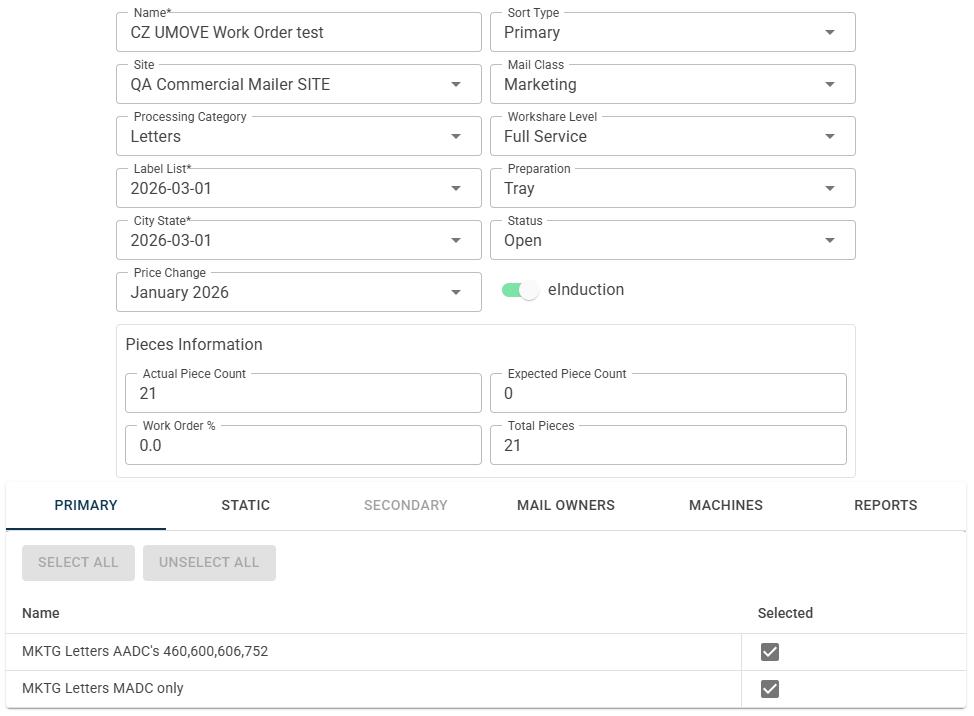
Fill in the following fields:
Name (REQUIRED)
Site
Processing Category – This refers to the type of mail pieces being run during the mailing.
Label List (REQUIRED) – Choose the most recent option.
City State (REQUIRED) – Choose the most recent option.
Price Change – Choose the most recent option.
Sort Type
Mail Class
Workshare Level – The workshare level informs USPS how much work was completed to sort the mail (this impacts the discount received on the mail pieces).
Preparation
Status – The status of a new mailing should be set to “Open”.
eInduction toggle – This toggle indicates whether an arrangement has been made between an MSP and USPS about the time/location for mail delivery.
If the toggle is red, eInduction HAS NOT BEEN selected;
if the toggle is green, eInduction HAS BEEN selected.
Next, selections will need to be made in the following tabs:
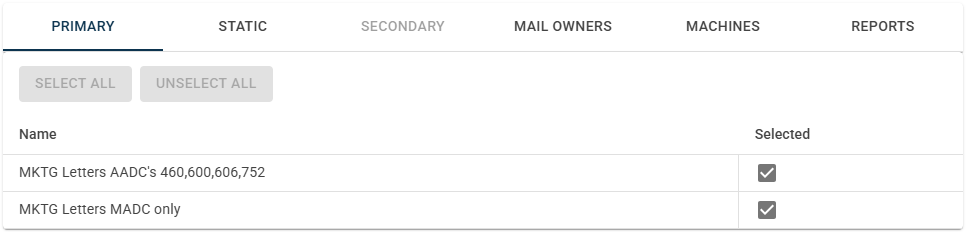
In the “PRIMARY” tab, select the Primary sort profile the mailing will use.
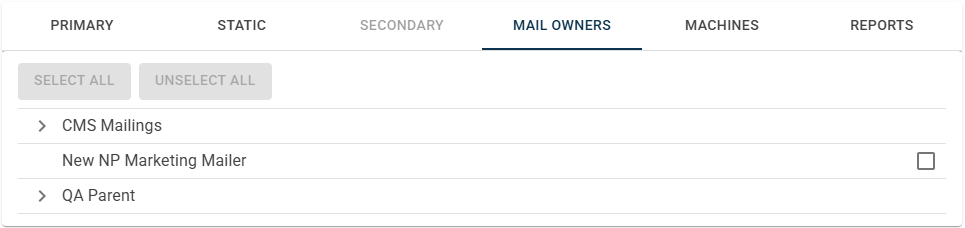
In the “MAIL OWNERS” tab, select the mail owners to be processed during the mailing.
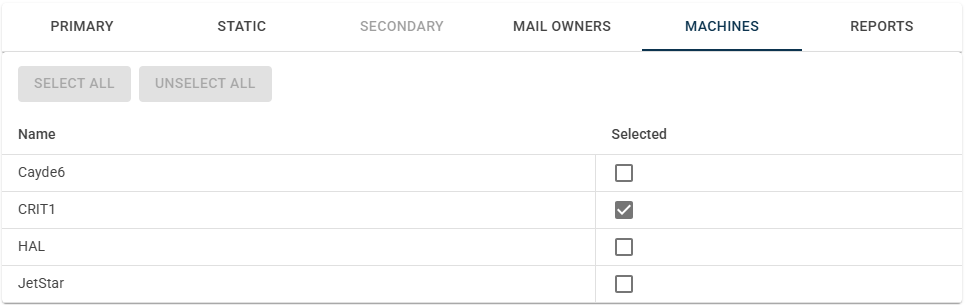
In the “MACHINES” tab, select the machine that the mailing will be processed on.
After filling out the specified fields and tabs, select “SAVE”.

After an operator has processed a mailing, new features will become accessible in the mailing's pop-up:
The "Pieces Information" section - This section shows operators information on mail pieces connected to work orders processed under the mailing.
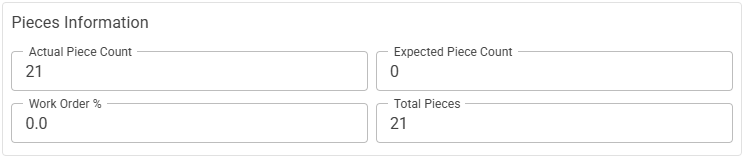
Actual Piece Count – This is the number of mail pieces that were processed under work orders.
Work Order % – This is the percentage of mail pieces processed under work orders.
Expected Piece Count – This is the number of expected mail pieces for work orders.
Total Pieces – This is the total number of mail pieces, regardless of whether these pieces were processed under a mail owner or a work order.
The "Status" drop-down list - After a mailing has been finalized, operators will have the option to “close” the mailing. This will move the mailing from the main page of the Mailings Editor (where active mailings are listed) to the “Closed” page (where closed mailings are listed).

Keep in mind that...
Closing a mailing is not part of the finalization process; Closing is an optional step that operators may take after finalization.
Keep in mind that closing a mailing will close all work orders connected to the mailing, and change the “EDIT” button to a “VIEW” button.
To access closed mailings, use the “Closed” toggle at the top of the Mailings Editor to toggle between active and closed mailings.