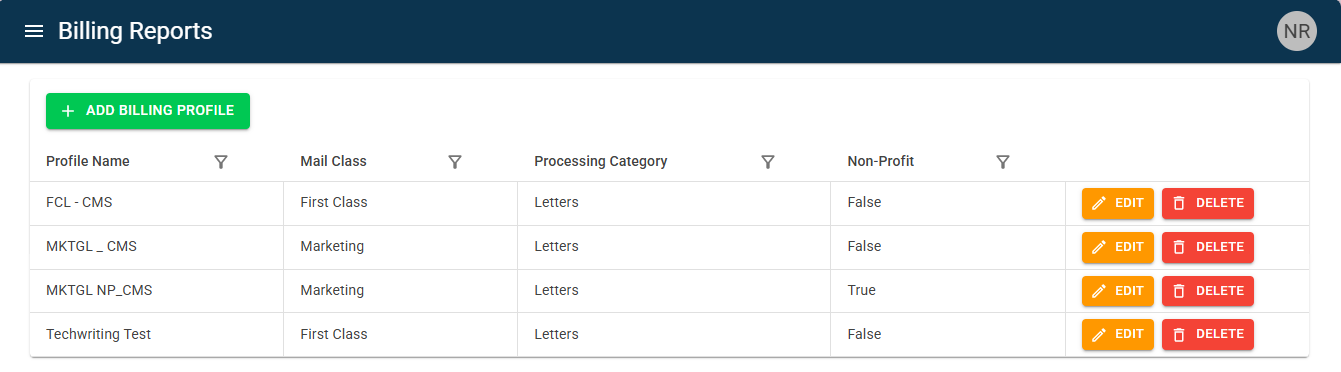
Also referred to as "Billing Reports," the Billing Editor allows users to create and manage billing profiles.
Click on the "ADD BILLING PROFILE" in the top-left corner of the editor.

A pop-up will open.
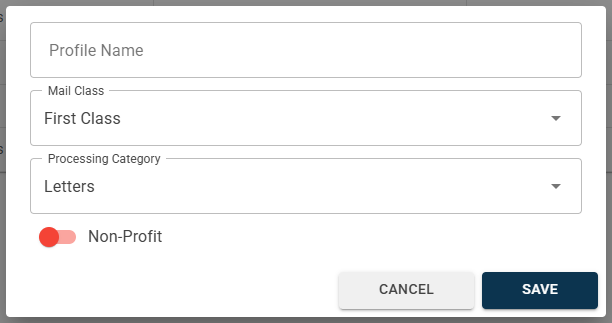
In the pop-up, fill out the following fields:
Profile Name
Mail Class
Processing Category
Non-Profit toggle - Use the toggle to determine whether the profile will be used for non-profile mail.
If the toggle is red, then the profile is NOT MARKED as non-profit; if the toggle is green, the profile IS MARKED as non-profit.
Select "SAVE" to save the billing profile.

After a billing profile has been created, users will be able to edit and tune the profile to their specific needs.
Select the billing profile in the list.
Click on the corresponding "EDIT" button.

This will direct the user to a new page.
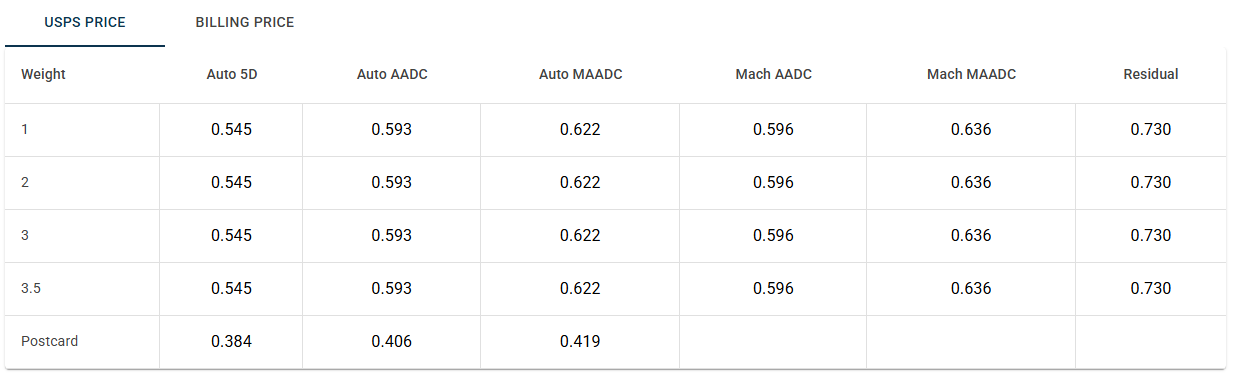
This page is split into two tabs: the "USPS PRICE" and "BILLING PRICE" tabs.
In the "USPS PRICE" tab, users will be able to view the various rates USPS will charge per sort level and mail piece weight.
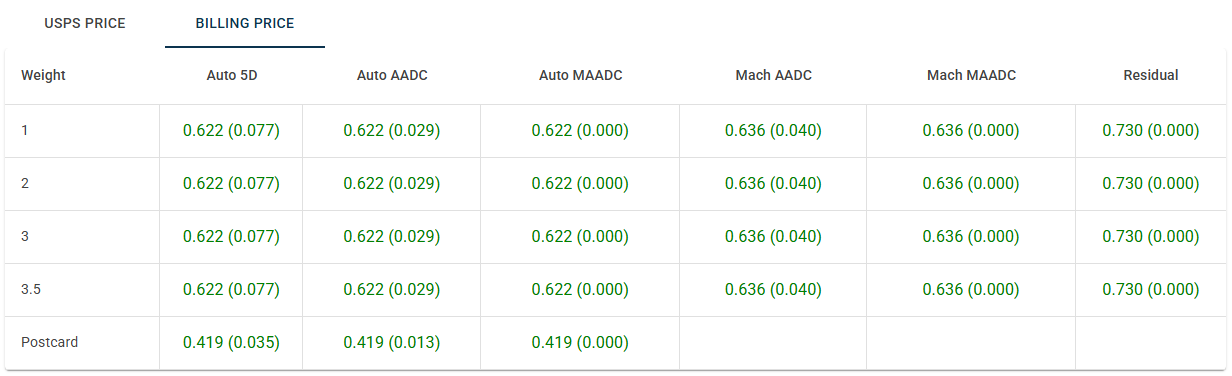
In the "BILLING PRICE" tab, users will be able to view the rates they're charging mail owners and how those rates compare to the USPS prices. Values listed in green indicate a profit, while values listed in red indicate a deficit.
Below these two tabs are the "Base Rate", "Rate Modifier", and "Configuration" sections. Users will adjust these sections in tandem to modify the rates in the "BILLING PRICE" tab.
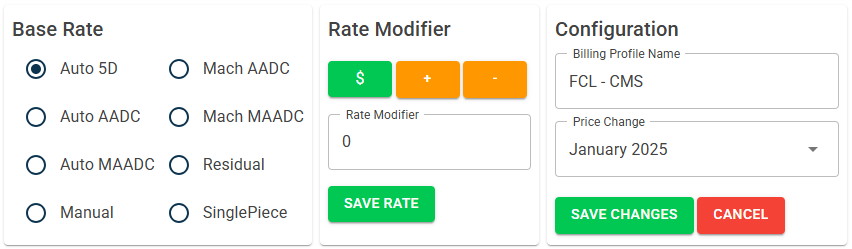
Open the "BILLING PRICE" tab.
In the tab, select the cell(s) to adjust.
When a cell is selected, the cell will turn light purple.

Selecting a column header will select the whole column.
Users can select multiple cells at once to edit.
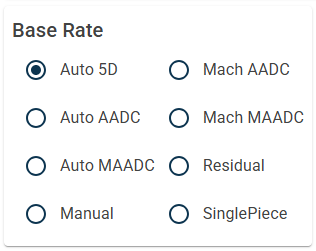
In the "Base Rate" section, select the sort level/base rate to adjust.
In the "Rate Modifier" section, use the buttons to adjust the rate.
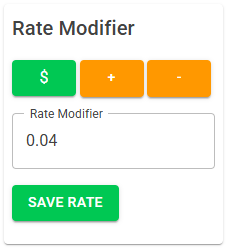
The rate can be adjusted by a dollar amount or a percentage. Click on the "$" to toggle to the "%" and vice versa.
Use the "+" and "-" to increase or decrease the amount by one.
In the "Rate Modifier" text field, users can directly enter an amount.
Once satisfied with the adjustment, select "SAVE RATE".
The adjusted rates will reflect in the selected cells.
In the "Configuration" section, select the most recent prince change option.
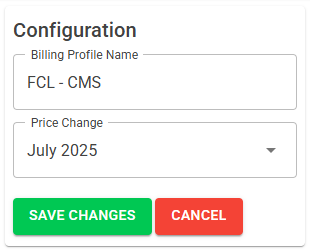
Select "SAVE CHANGES".

Reading Cell Values
Values in cells are arranged like as shown: “0.0 (-0.593)”:
The “0.0” shows how much mail owners are being charged.
The “(-0.593)” shows how much loss/profit is being made from that rate in comparison to the USPS rates.
Was this article helpful?
That’s Great!
Thank you for your feedback
Sorry! We couldn't be helpful
Thank you for your feedback
Feedback sent
We appreciate your effort and will try to fix the article